Import Contacts
Quickly and easily transfer existing contacts from other systems into the spooorts Manager – via file upload, drag & drop or using the CSV and vCard formats.
Why Import Contacts?
If you already have contact data stored in another application – for example in a spreadsheet, in your email programme or in another club management tool – you do not need to re-enter them one by one. The import function lets you transfer all contacts into the spooorts Manager at once. This saves time and avoids typing errors.
Step 1 – Open the Import Dialog
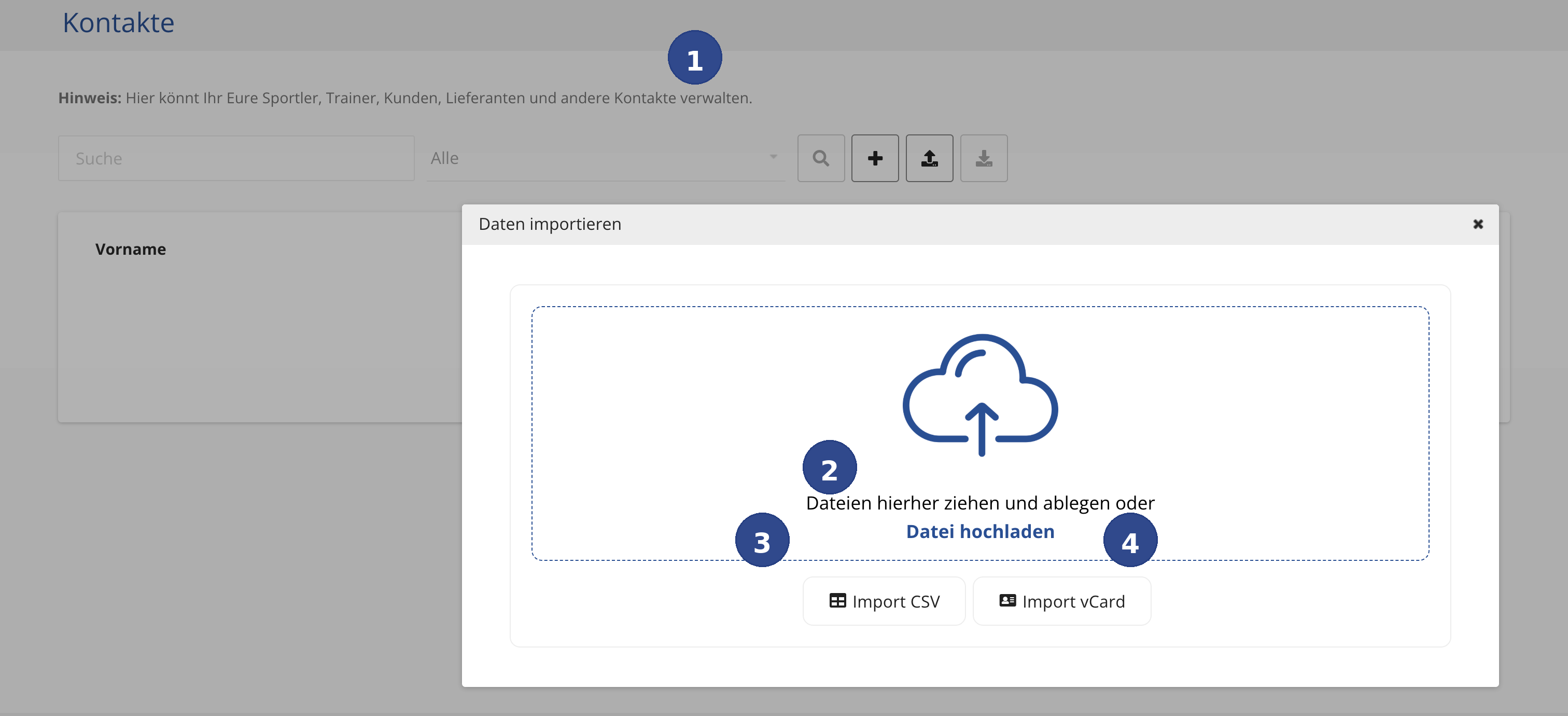
Navigate in the spooorts Manager to the Contacts section. In the toolbar above the contact list you will see several small buttons. Click the Import icon (an upward-pointing arrow – see callout ① in the image). The "Import Data" dialog opens.
Step 2 – Select a File
In the opened dialog there are two ways to provide your file:
Option A – Drag & Drop: The large dashed area in the centre of the dialog is the drag-and-drop zone. Open the folder on your computer where the import file is located. Click the file, hold the mouse button and drag it directly into this dashed area. Then release the mouse button. The file is recognised automatically and the import begins.
Option B – Select a file via the file browser: If you prefer to search for the file using a standard selection window, click the blue link "Upload file" (see callout ②). The familiar file selection dialog of your operating system (Windows, macOS or Linux) opens. Navigate to the desired file, select it and confirm with "Open".
Import via CSV File
Click the "Import CSV" button (see callout ③) to import a file in CSV format.
What is a CSV file? CSV stands for Comma-Separated Values. It is a simple text file in which the contact data is organised in a tabular layout – similar to a spreadsheet but without formatting. Each line corresponds to one contact, and the individual fields (e.g. first name, last name, email) are separated by a delimiter – usually a comma or semicolon.
When to use CSV? The CSV format is particularly well suited when your contacts are stored in a spreadsheet application such as Microsoft Excel, Google Sheets or LibreOffice Calc. Most programmes offer an "Export as CSV" or "Save as → CSV" function.
How to create a CSV file from Excel:
- Open your contact list in Excel (or another spreadsheet application).
- Make sure the first row contains the column headings, e.g.
First Name,Last Name,Email. - Click File → Save As and choose CSV (Comma delimited) as the file type.
- Save the file and then use it for the import.
Import via vCard File
Click the "Import vCard" button (see callout ④) to import contacts in vCard format.
What is a vCard? A vCard (file extension .vcf) is an
internationally standardised exchange format for electronic business cards.
Virtually all contact and address book applications support this format –
including Apple Contacts (iPhone, Mac), Google Contacts, Microsoft Outlook and
Thunderbird.
When to use vCard? Use the vCard format when you want to transfer
contacts from an email programme or a smartphone address book. A single
.vcf file can contain one or even several hundred contacts at
once.
How to export contacts as vCard:
- Apple Contacts (iPhone / Mac): Open the Contacts app, select the
desired contacts, click File → Export → vCard and save the
.vcffile. - Google Contacts: Open
contacts.google.com, select the contacts, click Export and choose the vCard format. - Microsoft Outlook: Go to File → Open & Export → Import/Export → Export to a file and choose vCard file (.vcf) as the target format.
Overview of Controls
Here is a summary of all elements in the import dialog:
- ① Import Button – Opens the import dialog. Found in the toolbar in the Contacts section (upward-arrow icon).
- ② "Upload file" – A clickable link that opens your operating system's file selection dialog.
- ③ Import CSV – Starts the import process for a CSV file (tabular data).
- ④ Import vCard – Starts the import process for a vCard file (electronic business cards).